The Ultimate Setup Guide for Your 34Gs95Qe B
The landscape of high-performance gaming monitors has shifted dramatically with the introduction of the LG UltraGear 34GS95QE-B. As a 34-inch curved OLED powerhouse, this display represents the pinnacle of current panel technology, merging the deep, infinite contrast ratios of organic light-emitting diodes with a blistering 240Hz refresh rate and an aggressive 800R curve. However, owning such a sophisticated piece of hardware is only half the battle. To truly Extract the value from a premium investment like the 34GS95QE-B, users must navigate a complex landscape of hardware synchronization, color calibration, firmware management, and physical ergonomics. This guide provides a comprehensive roadmap for enthusiasts seeking to optimize their workstation and gaming environment for this specific ultrawide titan.
Understanding the Core Technology: The OLED Advantage
Before diving into the physical setup, it is essential to understand what makes the 34GS95QE-B a unique beast in the electronics market. Unlike traditional IPS or VA panels that rely on a backlight, every pixel on this OLED panel is self-lit. This allows for true blacks, as a pixel can simply turn off entirely. For the end-user, this translates to an HDR experience that is fundamentally superior to local-dimming solutions found in LCDs. The 34GS95QE-B also utilizes LG’s latest Micro Lens Array (MLA+) technology, which significantly boosts peak brightness compared to older OLED generations, addressing one of the primary criticisms of the technology. When setting up, your goal is to preserve this contrast while mitigating the inherent risks of the technology, such as image retention or "burn-in," through software and hardware precautions.
Physical Installation and Ergonomics
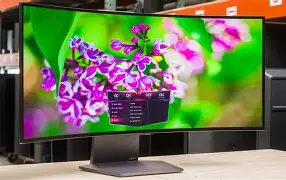
The setup begins with the physical environment. The 34GS95QE-B features a dramatic 800R curvature, which is much tighter than the 1500R or 1800R curves seen on many other ultrawide monitors. This tight radius is designed to wrap the image around your peripheral vision, creating a sense of immersion that is unparalleled in racing simulators and first-person shooters. However, this curve dictates a specific viewing distance. For the best experience, the user should sit approximately 0.8 to 1.0 meters away from the center of the screen. Sitting too far away can make the aggressive curve feel distorted, while sitting too close may cause eye strain as you struggle to scan the edges of the high-refresh-rate panel.
Weight management is another consideration. The monitor is surprisingly light for its size due to the lack of a heavy backlight assembly, but the stand remains substantial. If you are opting for a third-party monitor arm, ensure it supports the VESA 100x100mm standard and is rated for the specific weight of the panel without the stand. A high-quality gas-spring arm is recommended to allow for easy transitions between a focused "work" height and a lower "gaming" height, which can help alleviate neck strain during long sessions.
The Essential Hardware Connection
To achieve the advertised 240Hz refresh rate at the native 3440 x 1440 resolution, cabling is not optional—it is critical. The 34GS95QE-B is equipped with DisplayPort 1.4 (with DSC) and HDMI 2.1 ports. While both can technically handle the bandwidth, users with modern NVIDIA or AMD graphics cards should prioritize the HDMI 2.1 ports if they are using the latest generation of GPUs (RTX 30-series/40-series or RX 6000/7000-series). HDMI 2.1 provides the full bandwidth required for 10-bit color depth, 240Hz, and HDR without relying as heavily on Display Stream Compression (DSC), though DSC is virtually lossless and perfectly acceptable on DisplayPort as well.
When connecting to a PC, ensure you are using a certified Ultra High Speed HDMI cable. Using an older HDMI 2.0 cable will cap your refresh rate at 100Hz or 120Hz and prevent you from utilizing the VRR (Variable Refresh Rate) features that are vital for smooth gaming. Once plugged in, the first stop should be the Windows Display Settings or NVIDIA Control Panel to manually toggle the refresh rate from the default 60Hz to the maximum 240Hz.
Software Optimization and Windows Settings
Windows 11 is highly recommended for owners of the 34GS95QE-B. The operating system includes significantly better HDR management than Windows 10, specifically the "Auto HDR" feature which can inject high dynamic range into older games that don't natively support it. After enabling HDR in the Windows settings, users should download the Windows HDR Calibration Tool from the Microsoft Store. This tool creates a custom color profile that tells the OS exactly how bright the monitor can get, preventing "clipping" where highlights become a featureless white blob. For the 34GS95QE-B, the peak brightness should be set according to the "DisplayHDR True Black 400" or "Peak 1000" modes, depending on which setting you have toggled in the monitor’s OSD.
Text clarity is another area requiring attention. Because OLED panels often use a non-standard subpixel layout (such as RWGB), text can sometimes appear slightly fuzzy or have "fringing" around the edges. To combat this, run the ClearType Text Tuner in Windows. While it won't change the hardware layout, it helps the OS better align text rendering with the 34GS95QE-B’s specific pixel structure.
Shop the latest Electronics picks on Amazon.
Browse Now →Navigating the OSD: Mastering the Internal Menus
The On-Screen Display (OSD) of the 34GS95QE-B is accessed via a joystick under the bottom bezel or through LG’s "OnScreen Control" software. For the ultimate setup, avoid the "Vivid" or "FPS" modes, which often oversaturate colors and crush shadow detail. For gaming, the "Game 1" or "Game 2" modes are the best starting points. For color-critical work or watching movies, the "sRGB" or "DCI-P3" modes offer the most accurate color reproduction.
Important settings to toggle include Adaptive-Sync, which should always be "On" to eliminate screen tearing. The OLED Care settings should also be reviewed immediately. LG includes features like Pixel Cleaning, Screen Move (which shifts the image by a few pixels periodically), and Static Object Detection. Disabling these is not recommended, as they are the primary defense against burn-in. However, you can adjust the "Screen Move" intensity if you find the slight shifting distracting during precision productivity tasks.
Comparative Analysis: Where the 34GS95QE-B Stands
To understand the value proposition of this monitor, it helps to see how it compares to other popular ultrawide architectures currently on the market. The following table provides a breakdown of how the 34GS95QE-B's technology compares to traditional high-end gaming displays.
| Feature | 34GS95QE-B (OLED) | High-End IPS Ultrawide | Mini-LED Ultrawide |
|---|---|---|---|
| Contrast Ratio | Infinite:1 | 1000:1 to 2000:1 | 50,000:1 (Effective) |
| Response Time | 0.03ms (GtG) | 1ms (GtG) | 1ms to 3ms (GtG) |
| Refresh Rate | 240Hz | 144Hz - 165Hz | 144Hz - 175Hz |
| Black Levels | True Black (0 nits) | Dark Grey | Deep Grey/Black (with blooming) |
| Curvature | 800R (Aggressive) | 1800R (Subtle) | 1500R (Moderate) |
Pros and Cons: A Balanced Perspective
While the 34GS95QE-B is arguably one of the best gaming monitors ever produced, it is not without its trade-offs. Prospective and current owners should weigh these factors when deciding how to integrate the unit into their setup.
- Pro: Instantaneous Response Times - The 0.03ms response time virtually eliminates motion blur, making fast-moving objects in games like Valorant or Apex Legends look incredibly sharp.
- Pro: 800R Immersion - The curve fills the field of view more effectively than flatter panels, reducing the need for constant head movement.
- Pro: True HDR Performance - With no backlight blooming, dark scenes with bright highlights (like stars in space) look perfect.
- Pro: MLA+ Brightness - Unlike older OLEDs, this model is bright enough to be used in rooms with moderate ambient lighting.
- Con: Risk of Burn-in - Static UI elements like taskbars or health bars in games can eventually leave permanent marks if precautions aren't taken.
- Con: Text Clarity - Due to the subpixel layout, it is not the ideal choice for users who spend 100% of their time reading small text or coding.
- Con: Power Consumption - OLED panels generally consume more power than equivalent LCDs, especially when displaying bright white content.
Buying Guide: Is This the Right Monitor for You?
Investing in the 34GS95QE-B should be a calculated decision based on your specific use cases. Buyers typically fall into three categories: competitive gamers, immersive content consumers, and creative professionals. Understanding which category you fit into will help determine if the setup process is worth the effort.
The Competitive Gamer
If your primary focus is frame rates and minimal latency, this monitor is a dream. The 240Hz refresh rate combined with OLED’s nearly instant response times provides a competitive edge that even the fastest 360Hz IPS panels struggle to match in terms of visual clarity. For these users, the setup should focus on maximizing FPS (frames per second) through GPU settings and ensuring VRR is active to prevent stuttering.
The Immersive Media Enthusiast
For those who play sprawling open-world RPGs or watch cinematic content, the 21:9 aspect ratio and the 800R curve provide a "theatrical" experience. These users should focus their setup on HDR calibration and room lighting. Because the 34GS95QE-B has an anti-glare matte coating, it handles reflections better than glossy OLEDs, but it still performs best in a dim environment where the infinite contrast can truly shine.
Shop the latest Electronics picks on Amazon.
View Offers →The Productivity Power User
If you plan to use this monitor primarily for work—spreadsheets, word processing, and web browsing—you should be cautious. The risks of burn-in are highest here because of static windows. If you do choose this monitor for work, your setup must include a hidden taskbar, a rotating desktop wallpaper, and a relatively short "screen off" timer for inactivity. Additionally, the aggressive curve can make straight lines in architectural software or video editing timelines appear slightly warped until your brain adjusts to the perspective.
Mitigating Risks: The OLED Maintenance Routine
A vital part of the setup guide is establishing a long-term maintenance routine to protect the panel. The 34GS95QE-B is a significant investment, and "OLED anxiety" is a real phenomenon for many owners. To mitigate this, follow these administrative steps:
First, dark mode everything. Every pixel that is black is a pixel that is not wearing out. Use dark themes for Windows, your browser, and your office applications. Second, utilize the LG Dual Controller software if you use multiple computers (like a work laptop and a gaming PC). This allows you to share a mouse and keyboard and manage the screen real estate efficiently. Third, never unplug the monitor from the wall immediately after a session. The 34GS95QE-B needs to be in standby mode to run its automatic pixel-cleaning cycles which occur after several hours of use. If you cut the power entirely, the monitor cannot perform the necessary maintenance to prevent image retention.
Sound and Peripheral Integration
The 34GS95QE-B does not feature built-in speakers, which is common for high-end gaming displays where the manufacturer assumes the user will have a dedicated audio solution. However, it does feature a high-quality 4-pole headphone output with DTS Headphone:X support. This means that if you plug your headset directly into the monitor, you can take advantage of spatial audio processing. During setup, ensure your Windows audio output is set to the monitor's name (LG HDR WQHD) to route sound through the HDMI or DisplayPort cable. If you are using professional studio monitors, you will likely bypass the monitor's audio entirely, but for casual gaming, the built-in headphone jack is a surprisingly capable and convenient feature.
Long-Term Utility: Firmware Updates
Electronics in the modern era are rarely "finished" when they leave the factory. LG frequently releases firmware updates for the UltraGear line to improve HDR tone mapping, fix bugs in the VRR implementation, or refine the OLED care algorithms. To set yourself up for success, install the LG OnScreen Control software. This utility will notify you when a firmware update is available. Unlike a motherboard BIOS, updating monitor firmware is usually a simple process handled over a USB connection (ensure the USB upstream cable is connected from your PC to the monitor). Keeping the firmware current is the easiest way to ensure the electronics inside the 34GS95QE-B continue to perform at their peak for years to come.
Conclusion
The LG 34GS95QE-B is more than just a screen; it is a sophisticated piece of electronic engineering that bridges the gap between professional-grade color accuracy and enthusiast-level gaming performance. By following a structured setup process—from physical ergonomic positioning and using the correct HDMI 2.1 cabling to meticulous Windows HDR calibration and OLED maintenance—you can ensure that you are getting every bit of performance you paid for. While the aggressive 800R curve and OLED characteristics require some initial adjustment and ongoing care, the result is an unrivaled visual experience that transforms how you interact with digital content. Whether you are navigating the streets of a neon-lit cyberpunk city or managing complex data sets in a panoramic workspace, this monitor represents the current zenith of ultrawide display technology.