The Ultimate Setup Guide for Your Taurus K320
The Durgod Taurus K320 has long maintained a reputation as one of the most reliable and performance-oriented mechanical keyboards on the market. For enthusiasts and professionals alike, the transition to a high-quality tenkeyless (TKL) board represents a significant upgrade in both workspace ergonomics and typing efficiency. This guide provides a comprehensive roadmap for unboxing, configuring, and optimizing the Taurus K320 to ensure it meets the rigorous demands of modern computing environments.
Introduction to the Taurus K320 Experience
When an individual first acquires a Taurus K320, they are entering into a segment of the peripheral market that prioritizes build quality and tactile feedback over flashy aesthetics. The Taurus K320 is characterized by its understated design, robust internal plate, and the inclusion of genuine Cherry MX switches. Unlike many mainstream gaming keyboards that rely on thin plastic housings and rattling stabilizers, the K320 is engineered to provide a consistent, "thocky" typing experience right out of the box. However, achieving the ultimate setup requires more than just plugging the device into a USB port. It involves understanding the hardware interface, mastering the firmware customization, and optimizing the physical placement for long-term comfort.
The TKL layout is particularly favored by those who value desk real estate. By removing the number pad, the K320 allows the mouse to be positioned closer to the user's center of gravity, reducing shoulder strain during long sessions of data entry or competitive gaming. This guide will explore how to leverage these physical advantages while fine-tuning the software side of the device to create a truly personalized workstation tool.
Initial Physical Setup and Hardware Inspection
The setup process begins with a thorough inspection of the hardware. The Taurus K320 typically comes with two cables: a USB Type-C to Type-A cable and a USB Type-C to Type-C cable. This versatility is a major selling point for users who work across different generations of hardware, such as a modern MacBook Pro and a legacy desktop PC. When connecting the cable to the keyboard, users should note the recessed channel on the underside of the chassis. This three-way cable routing system is essential for maintaining a clean desk appearance. Depending on the position of the computer tower or laptop, the cable can be routed directly out the back or channeled to either the left or right side.
One of the first things a user will notice is the weight of the unit. At approximately 0.9 kilograms, the K320 stays firmly planted on the desk. This stability is aided by high-quality rubber feet. Before commencing use, it is advisable to adjust the two-stage integrated feet to find the optimal typing angle. The K320 offers three distinct heights: flat, a slight tilt, and a more aggressive incline. Ergonomic research suggests that a flatter profile is often better for wrist health, but those used to traditional office keyboards may prefer the medium incline. It is recommended to test each setting for at least an hour to determine which prevents fatigue most effectively.
Detailed Product Analysis: What Makes the K320 Stand Out?
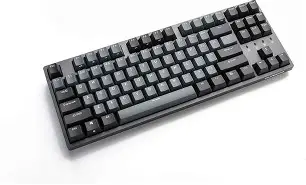
The Taurus K320 is not merely another mechanical keyboard; it is a masterclass in affordable enthusiast-level engineering. The key to its success lies in the synergy between the keycaps, the switches, and the stabilizers. The K320 utilizes double-shot PBT keycaps. PBT (polybutylene terephthalate) is a superior plastic compared to the ABS plastic found on cheaper boards. It is resistant to the "shine" that occurs when finger oils wear down the surface of the plastic over time. Furthermore, the double-shot molding process means the legends (the letters on the keys) are molded from a separate piece of plastic, making them virtually impossible to wear off.
Internally, the K320 features a steel plate which provides a rigid foundation for the switches. This rigidity ensures that every keypress feels deliberate and uniform. The stabilizers—the components under larger keys like the Spacebar, Shift, and Enter—come pre-lubricated from the factory. In the world of mechanical keyboards, "rattle" is the enemy of a premium feel. Durgod’s attention to detail in the stabilization department ensures that the wider keys feel as stable and smooth as the single-unit alphanumeric keys.
From a functional perspective, the K320 supports N-key rollover (NKRO). This means that every single keypress is registered independently, even if multiple keys are pressed simultaneously. This is a critical feature for gamers who might need to execute complex keyboard combinations, as well as for fast typists who may occasionally overlap keystrokes. The integration of 32-bit ARM processor architecture inside the board ensures that input latency is kept to an absolute minimum, translating to near-instantaneous on-screen results.
Find top-rated Electronics products at great prices.
Browse Now →Pros and Cons of the Taurus K320
- Pro: Exceptonal Build Quality - The combination of a heavy internal plate and high-quality plastics results in a zero-flex typing experience.
- Pro: PBT Double-Shot Keycaps - Included as standard, these keycaps offer a premium texture and legendary durability that usually requires a separate purchase on other boards.
- Pro: Versatile Connectivity - The inclusion of both Type-A and Type-C cables caters to all users without needing adapters.
- Pro: Pre-lubed Stabilizers - Significantly reduces the metallic "clack" often found in mid-range mechanical keyboards.
- Pro: Clean Aesthetics - The professional colorways (such as Space Grey or Corona) fit into both office environments and gaming setups.
- Con: Non-Hot-Swappable Switches - In the current market, some users might find it limiting that they cannot swap switches without soldering.
- Con: Basic Software Interface - While functional, the Durgod Zeus Engine software can be less intuitive than software from larger competitors like Logitech or Razer.
- Con: Fixed Cable Recess - The deep recess for the USB-C port means that some third-party custom "coiled" cables may not fit unless the connector housing is specifically slim.
Configuring the Durgod Zeus Engine
To unlock the full potential of the Taurus K320, users should install the Durgod Zeus Engine. This software suite allows for deep customization of the keyboard’s logic. Unlike many other peripherals, the K320 features robust onboard memory, meaning you can save your configurations directly to the hardware and they will persist even when the keyboard is moved to a different computer that doesn't have the software installed.
Within the Zeus Engine, users can remap any key on the board. This is particularly useful for professionals who want to optimize their workflow. For example, a video editor might remap the rarely-used Scroll Lock or Pause keys to act as "Cut" or "Paste" shortcuts. Additionally, the software facilitates the creation of complex macros. A macro can record a sequence of keystrokes with precise timing, which is invaluable for repetitive tasks in software like Excel or in complex gaming rotations.
For those who have the backlit versions of the K320, the Zeus Engine is also where lighting profiles are managed. While the standard Taurus K320 is non-backlit or features single-color LEDs, the customization allows for varying brightness levels and animation speeds. Even on non-backlit models, the ability to disable the Windows key (Win-Lock) through the software remains a top priority for gamers to prevent accidental task-switching during intense moments.
Comparative Analysis: K320 vs. Common Alternatives
To help potential buyers understand where the K320 sits in the current landscape, the following table compares the Taurus K320 with other popular TKL mechanical keyboards in its class. This data highlights the specific strengths of the Durgod offering regarding materials and internal hardware.
| Feature | Durgod Taurus K320 | Logitech G Pro TKL | Leopold FC750R |
|---|---|---|---|
| Keycap Material | Double-Shot PBT | Thin ABS | High-end PBT |
| Switch Options | Cherry MX / Gateron | Logitech GX | Cherry MX Only |
| Software Support | Durgod Zeus (Onboard) | Logitech G Hub | None (Physical DIP switches) |
| Cable Type | Detachable (USB-C) | Detachable (Micro-USB) | Detachable (Mini-USB) |
| Build Construction | Plastic Case / Steel Plate | Plastic Case / Steel Plate | Premium Plastic / Sound Dampening Pad |
Buying Guide: Choosing the Right Switches for Your K320
The most critical decision when setting up a Taurus K320 happens before it ever leaves the shelf: selecting the right switch type. Because the K320 is not hot-swappable, the choice of Cherry MX switch is permanent unless the user is comfortable with desoldering components. Buyers should consider their primary use case as well as their environment.
Cherry MX Blue switches provide the most tactile and auditory feedback. They are excellent for typing but can be disruptive in a shared office space or for those who participate in frequent voice calls. Cherry MX Brown switches are often considered the "middle ground," offering a tactile bump without the loud click, making them a safe choice for hybrid use. Cherry MX Red and Silent Red are linear switches, meaning they have a smooth travel from top to bottom. These are preferred by gamers for their speed and by office workers for their quiet operation. Lastly, Cherry MX Silver (Speed) switches have a shorter actuation point, specifically designed for competitive play where milliseconds matter.
Another factor to consider is the colorway. The K320 is available in several themes, from the classic "Retro" beige and grey to the modern "Nebula" RGB or "Space Grey" finishes. While purely aesthetic, the color can influence how the legends appear; high-contrast schemes like the black keys with white legends offer better visibility in low-light environments if you choose a non-backlit model.
Real-World Maintenance and Longevity
Maintenance is an often overlooked aspect of the setup guide. To keep the Taurus K320 in peak condition, a regular cleaning schedule is necessary. Because of the PBT keycaps, the board stays clean longer than most, but dust and debris will inevitably fall between the switches. Every few months, it is recommended to use a wire keycap puller to remove the caps. The K320 usually includes a high-quality wire puller in the box—avoid using plastic "ring" versions as they can scratch the sides of the PBT caps.
Looking for the best Electronics deals on Amazon?
Shop Amazon →Once the caps are removed, a can of compressed air can clear the plate. If the keycaps feel greasy, they can be soaked in a bowl of warm water with a drop of mild dish soap. Ensure they are completely dry—usually requiring 24 hours—before reattaching them to the switches. This level of care ensures that the K320 provides a decade or more of service, a stark contrast to the disposable nature of many modern electronics.
For those looking to take their setup a step further, many K320 owners find that adding a custom wrist rest can enhance the ergonomics. Since the K320 has a standard TKL height, finding a matching wood or foam wrist rest is straightforward. This addition helps maintain a neutral wrist position, complementing the keyboard’s natural incline and further reducing the risk of repetitive strain injuries.
Firmware Updates and Troubleshooting
Occasionally, Durgod releases firmware updates for the K320 to improve compatibility with newer operating systems or to refine the polling rate. To update the firmware, one must use the Zeus Engine software. Always ensure the keyboard is connected directly to the motherboard’s USB port rather than a hub during a firmware flash to prevent data interruption. If the keyboard ever becomes unresponsive or behaves erratically, most K320 models can be hard-reset by holding down specific keys (usually Fn + Esc) for five seconds until the indicator LEDs flash. This restores the factory default settings and clears the onboard memory.
Users should also be aware of the "Multimedia Keys." The K320 uses the Function (Fn) layer to provide control over volume, playback, and launching applications. During the initial setup, it is helpful to familiarize yourself with the symbols on the front-facing part of the keycaps (the side facing you). These side-printed legends explain the secondary functions of the F-row keys, allowing you to control your media without needing to leave your primary application.
Conclusion: The Taurus K320 as a Productivity Powerhouse
Setting up a Durgod Taurus K320 correctly transforms it from a mere peripheral into a refined extension of the user’s intent. By carefully selecting the appropriate switch type, configuring the three-way cable routing for a clean workspace, and utilizing the Zeus Engine for custom macros and remapping, users can create a highly efficient environment tailored to their specific needs. The combination of industrial-grade PBT keycaps and the reliable Cherry MX ecosystem ensures that the tactile quality will remain consistent for millions of keystrokes.
Whether the goal is to dominate in a competitive gaming arena or to draft long-form reports in a quiet office, the K320 provides the foundation needed for success. Its simple, effective design ignores passing trends in favor of timeless build quality. By following this ultimate setup guide, owners of the Taurus K320 can rest assured that they are getting the absolute best performance and longevity out of one of the finest mechanical keyboards available today. The investment of time in the initial configuration pays dividends in every subsequent word typed and every command executed.